Quick Links:
- How to set up a Secure Trade transaction on Junk Mail
- How to view the status of your transaction
- How to approve and fund a transaction
- How to confirm delivery after a transaction has been funded
- How to release the funds to the seller
- Disputing a transaction
- What a cancelled transaction looks like
Buying and selling online always comes with risks. Therefore Junk Mail, in partnership with Truzo, has come up with a way for buyers and sellers to transact safely online called Secure Trade.
Setting up Secure Trade transactions and funding them is quick and easy and everything can be done from your Junk Mail account. The process consists of a few simple steps:
- The seller places a Secure Trade advert on Junk Mail.
- The buyer enquires about the advert and decides to buy it.
- The buyer and seller agree on the price and terms of the sale and a transaction is set up by the seller.
- The buyer then funds the transaction and the money will go into escrow.
- The goods should then be exchanged as per the agreement and be ticked off on the system as “Delivered”.
- The funds are released to the seller if the buyer is happy with the product(s) received.
Below, we’ll explain the process of setting up and funding transactions from your Junk Mail dashboard.
How to set up a Secure Trade transaction on Junk Mail
There are two places where transactions can be set up, namely the leads dashboard or the ads dashboard.
The leads dashboard makes it easier for a transaction to be set up, as you would have partial or complete contact details of the buyer. All you need to do is specify the transaction details and maybe fill in some missing contact details for the buyer.
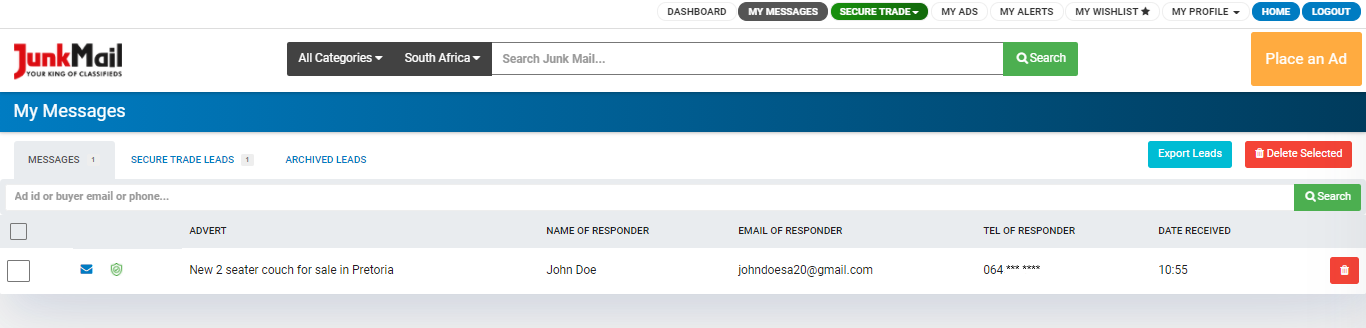
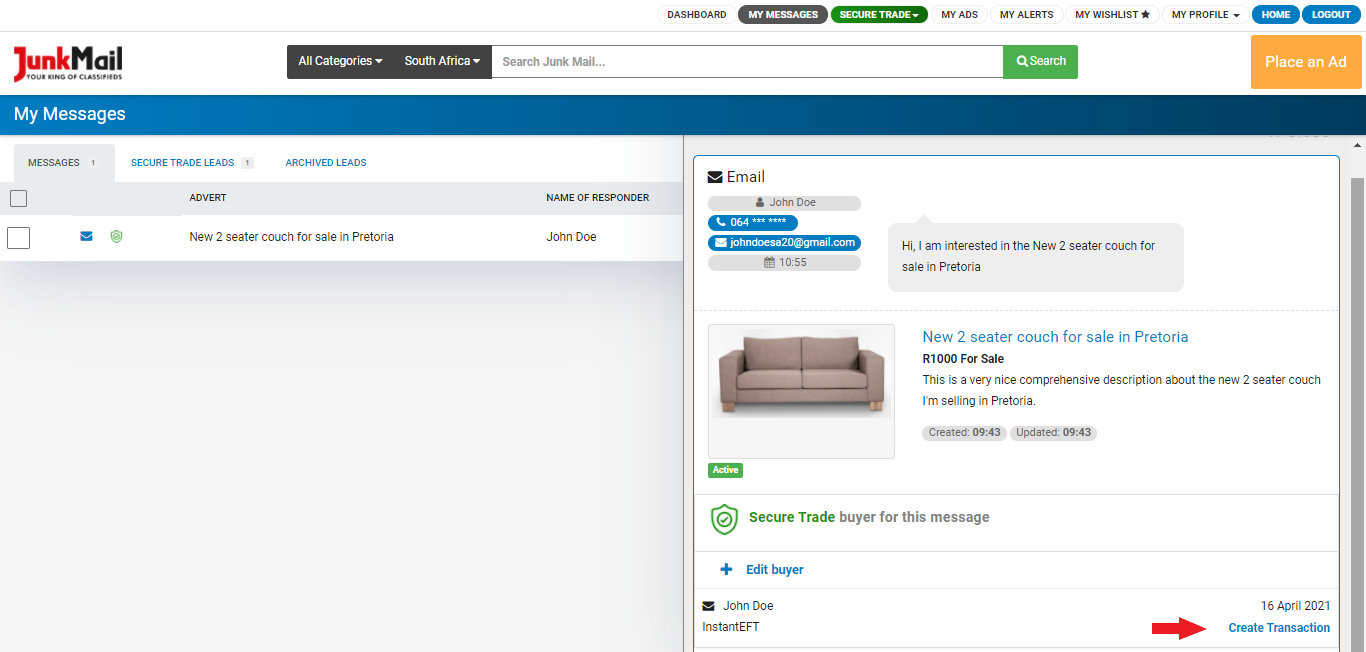
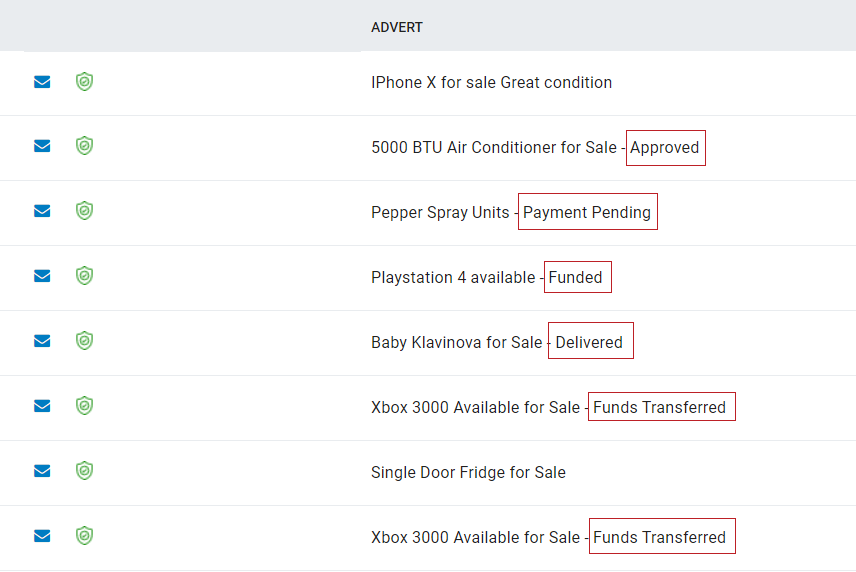
Your leads dashboard will also display the status of the transaction next to the advert title and all Secure Trade leads will be marked with the Secure Trade shield icon.
You can also set up a transaction from the ads dashboard. If you go this route, you would have to specify the buyer’s details and the transaction details.
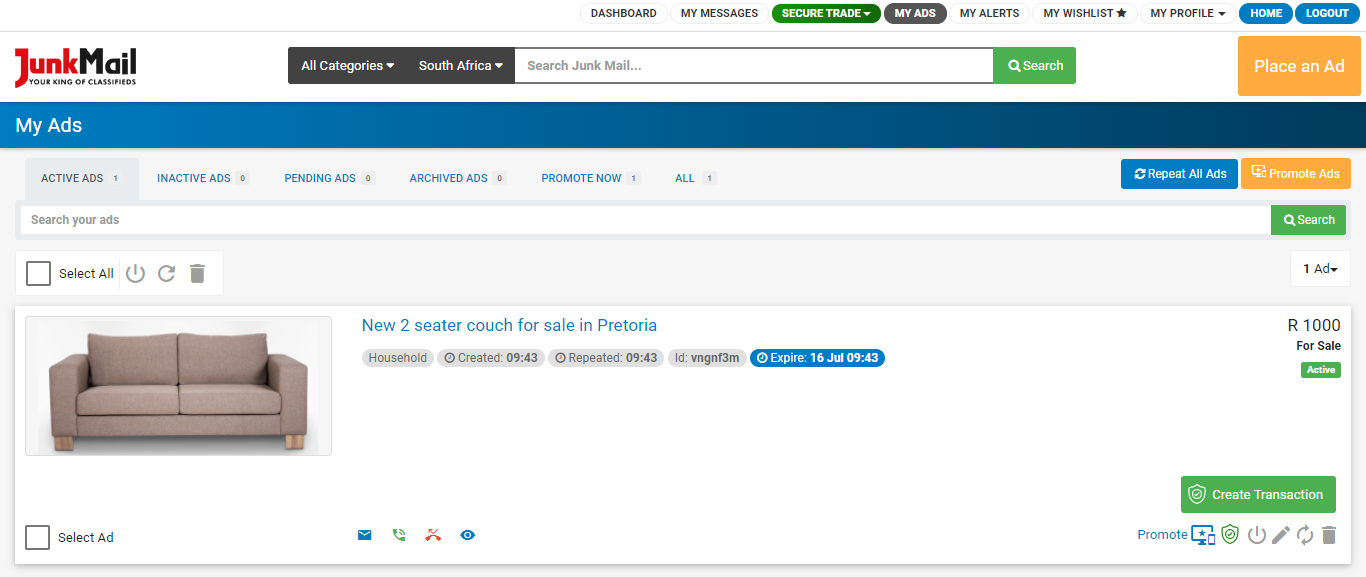
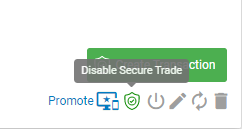
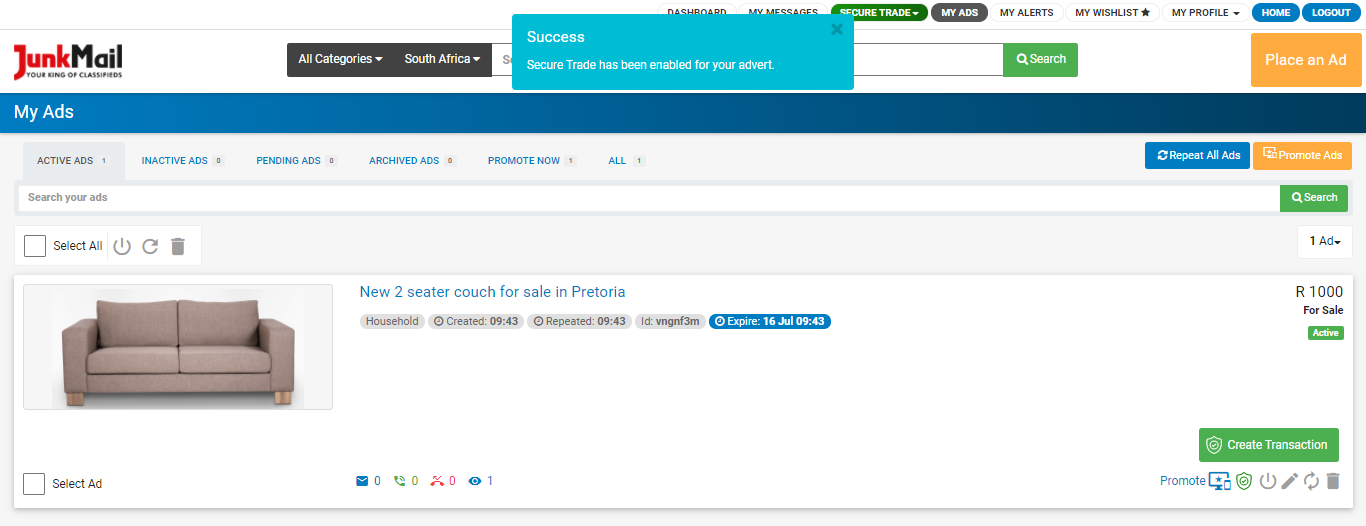
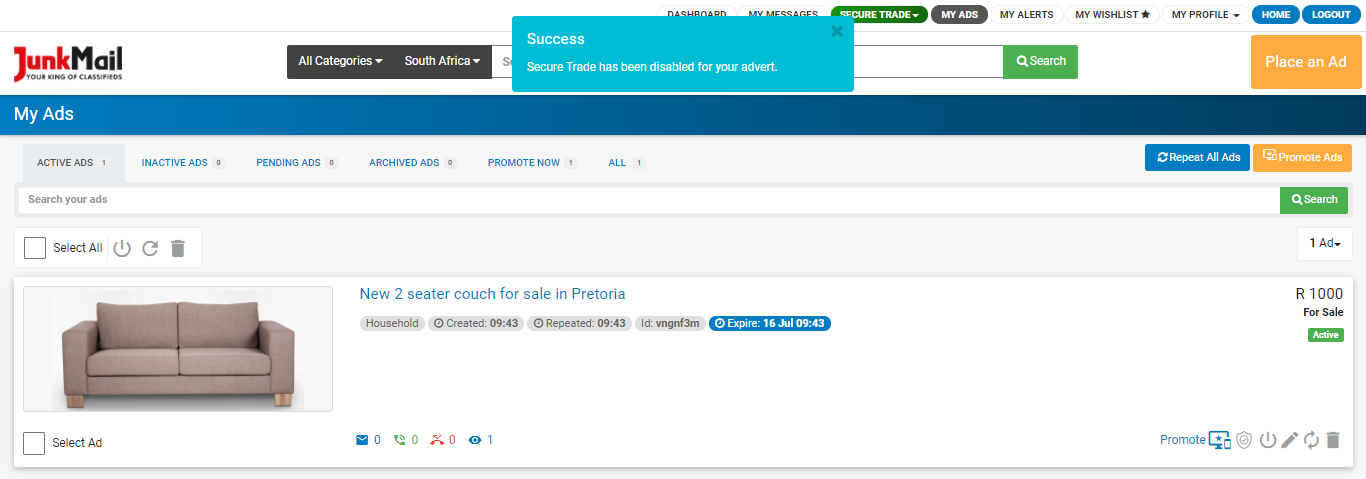
From the ads dashboard, you can also enable and disable Secure Trade on each eligible advert.
Click ‘Create Transaction’ and specify the transaction details:
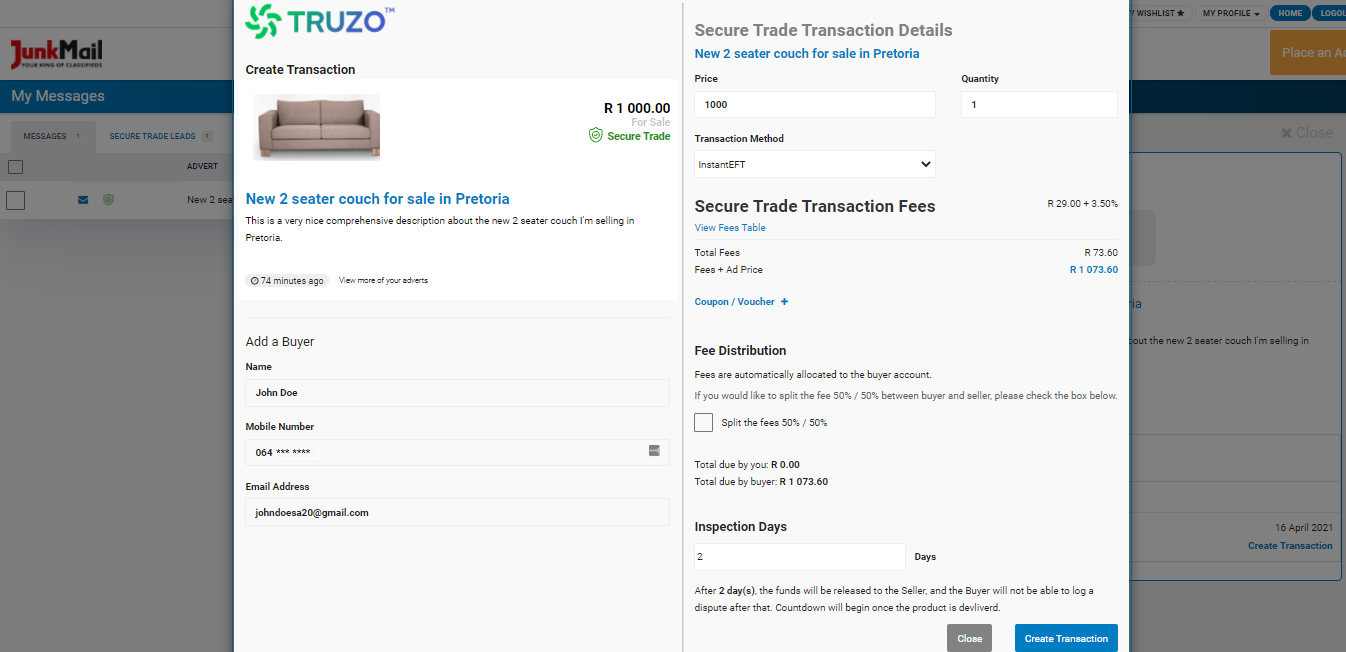
You’ll see a screen pop up where you will have to input the buyer’s details on the left-hand side (if the details are not already specified) and the transaction details on the right, which will be partially filled in based on your advert.
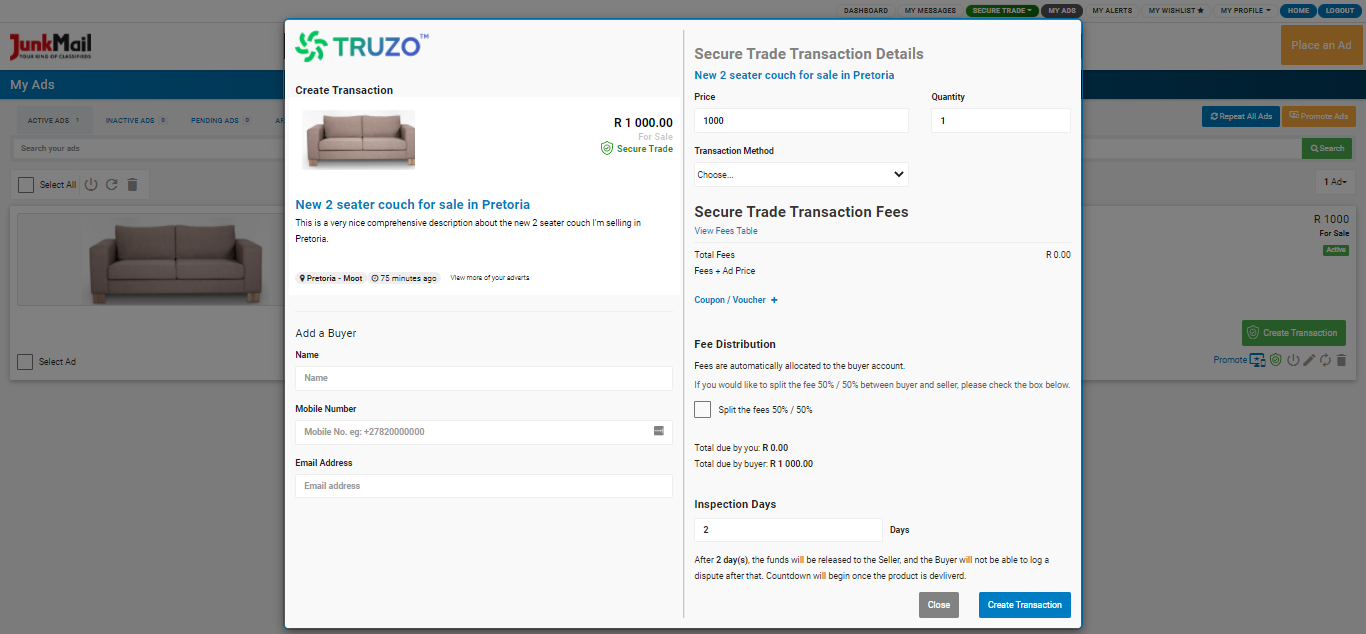
If you’re setting up the transaction from the leads dashboard and you cannot edit some of the buyer’s details, please go to the ads dashboard and set up the transaction from there, as you can manually input the buyer’s details on that screen.
The details required for the buyer’s section includes the buyer’s name, contact number, and email address.
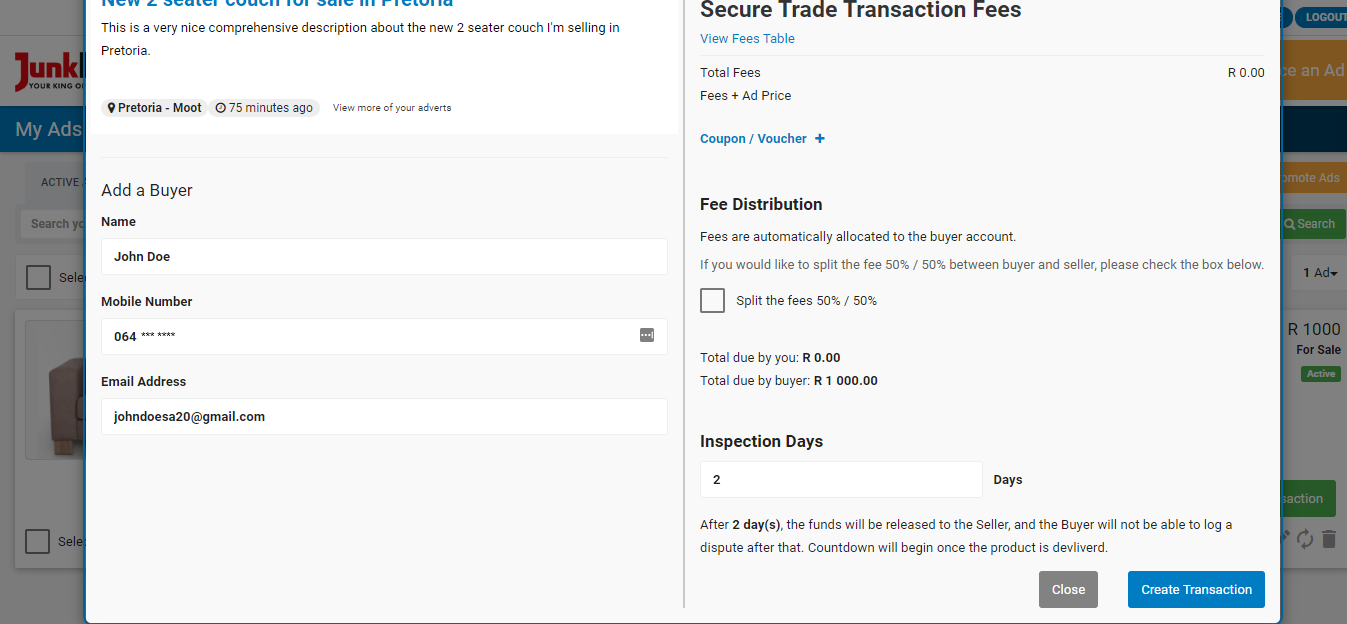
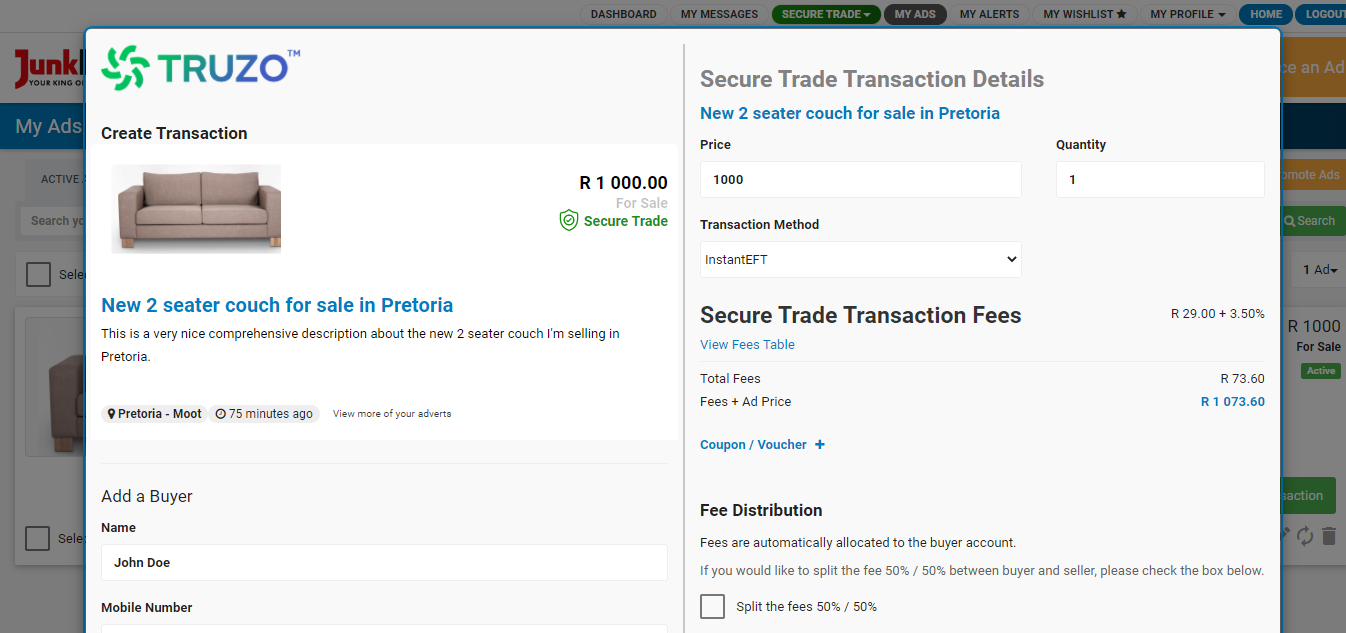
On the right, you can specify the transaction details, such as:
- Price
- Quantity
- Transaction method
- Whether the buyer will be paying the transaction fees or whether it will be split 50/50 between the buyer and seller
- The number of inspection days
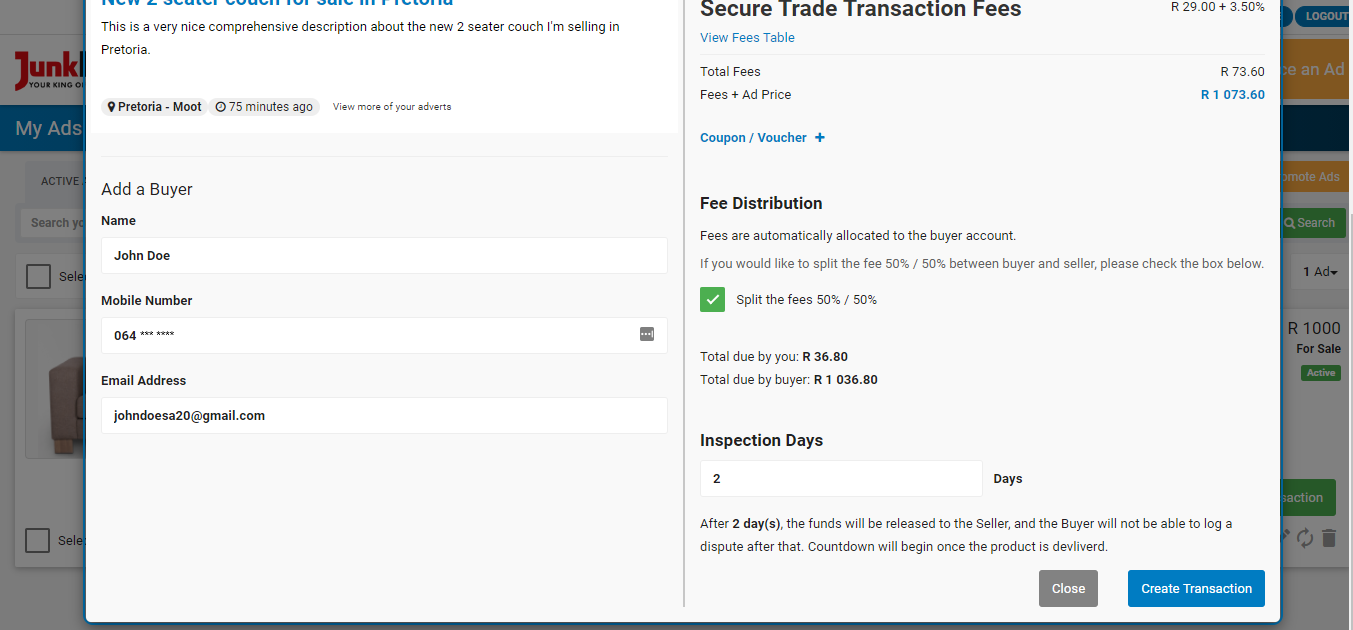
Select the number of inspection days applicable to the transaction:
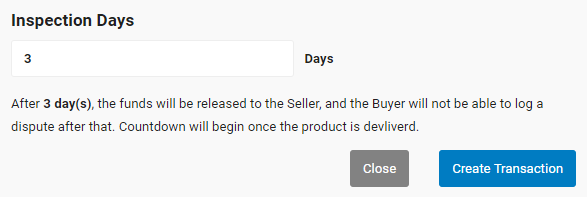
Please note:
- The seller can edit the number of inspection days, but the buyer and seller should be in agreement as to how many inspection days there will be.
- The inspection days only start counting down once the seller has confirmed that the product has been delivered to the buyer.
- The only time a buyer can dispute a transaction is after delivery has been confirmed and before the inspection days have lapsed.
- Once the inspection days have lapsed, the money will automatically be released to the seller, whether the buyer selected to release the funds to the seller or not.
- If the buyer is happy with the goods received, they can release the funds to the seller before the inspection days have lapsed.
- Once the funds are released, the transaction will be seen as completed.
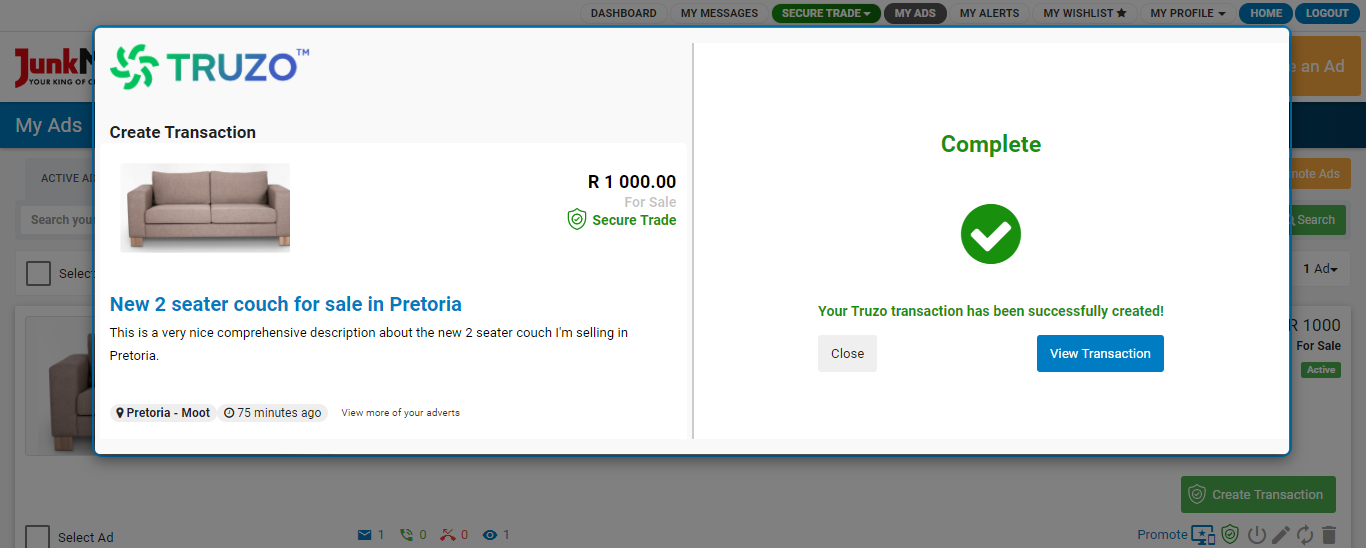
Once you have confirmed all of the transaction details, you can click on the ‘Create Transaction’ button. You will receive a success message and both you and the buyer will be notified of the transaction created.
How to view the status of your transaction
You can select ‘View Transaction’ below the success message to view the details and status of the transaction. You can also view all of your transactions by clicking the arrow on the Secure Trade button in the navigation and selecting ‘Transactions’.
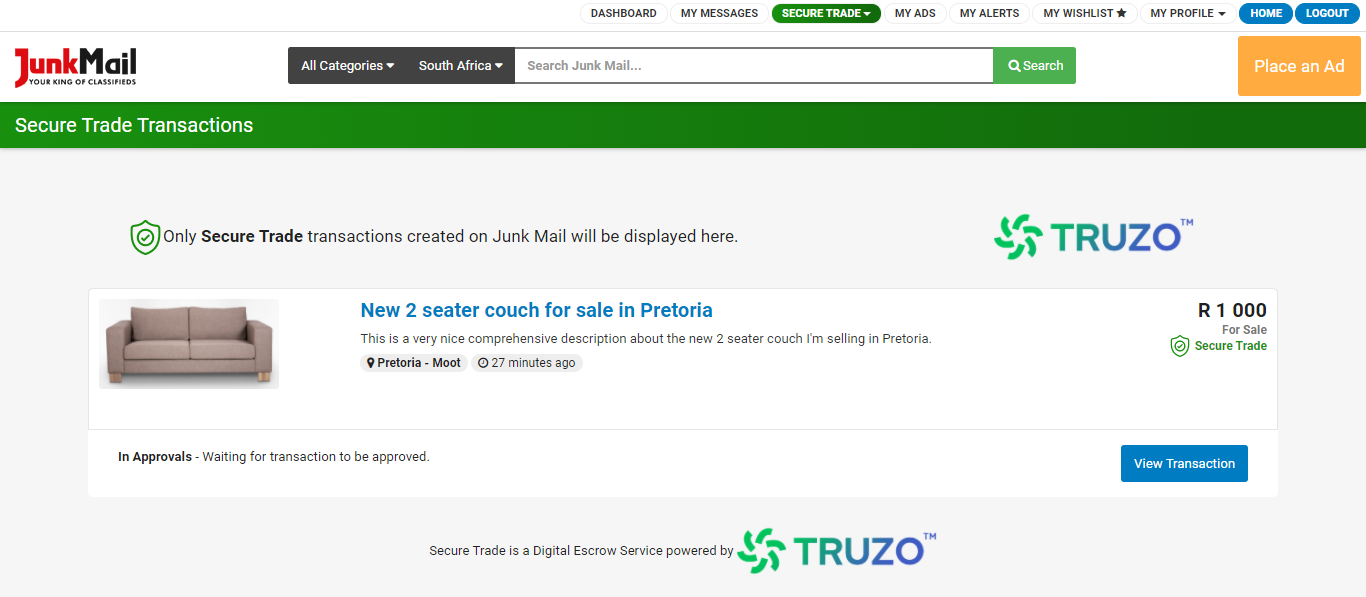 (All transactions view)
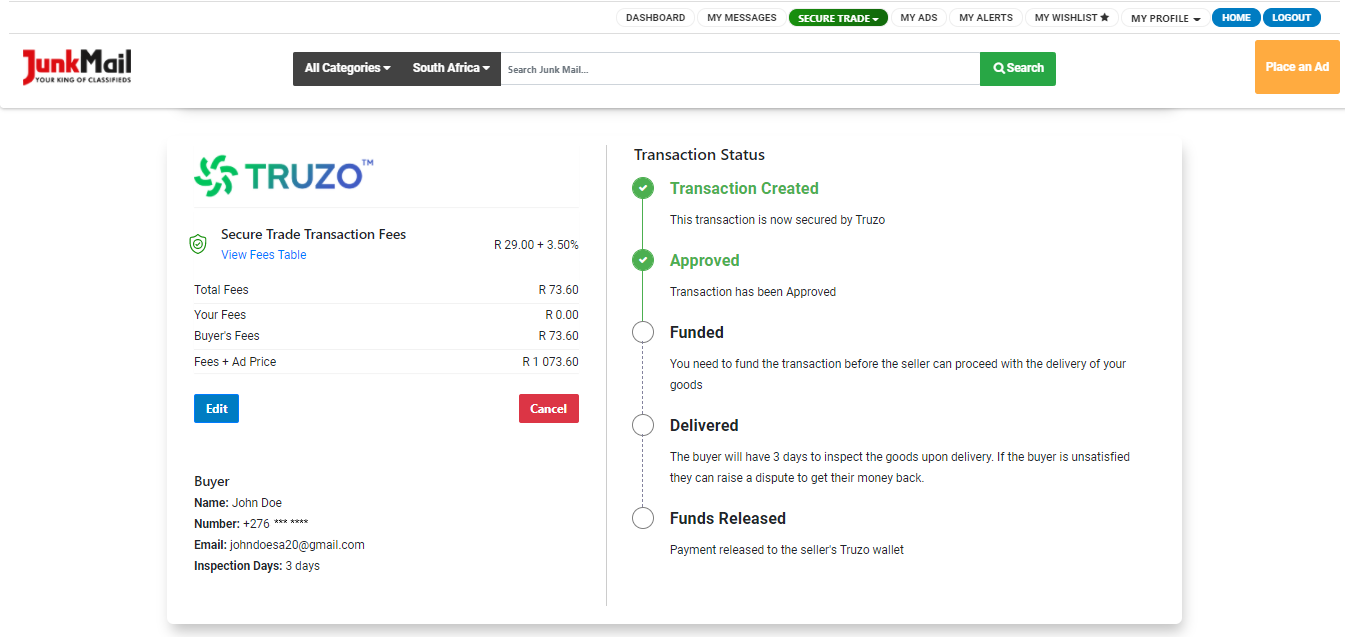 (Seller view of the transactions page)
Use the refresh button to update the transaction status.
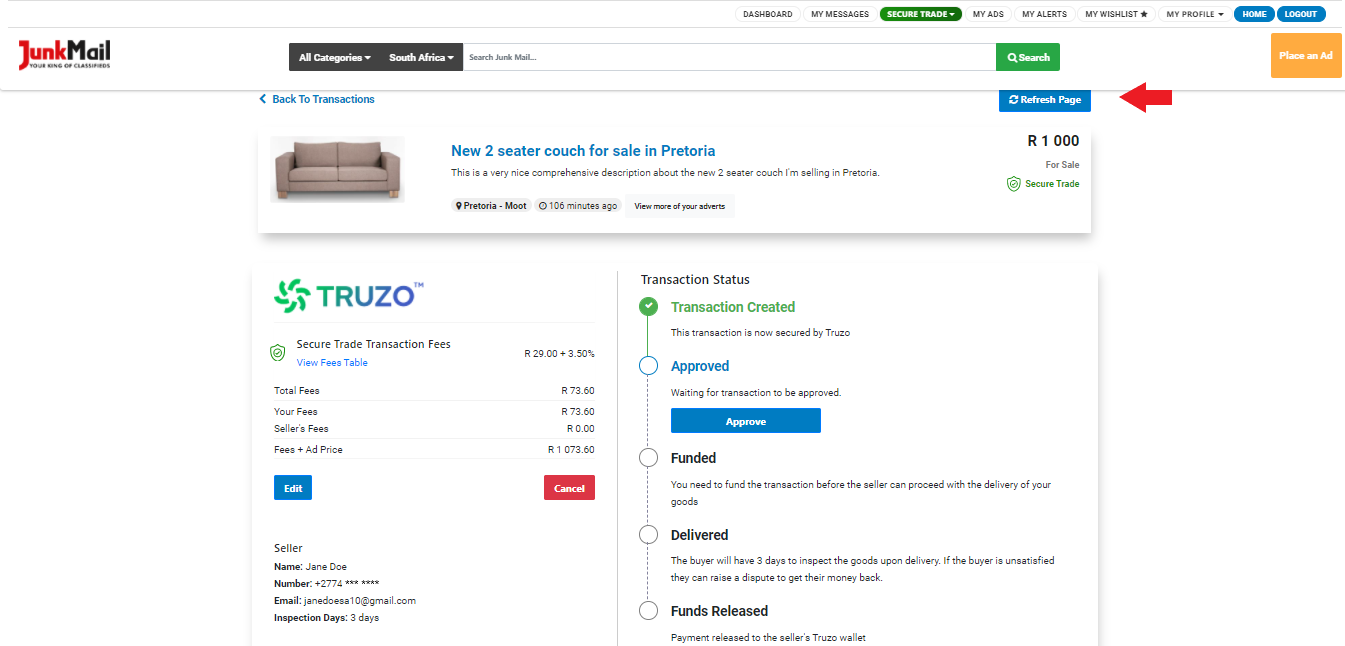
How to approve and fund a transaction
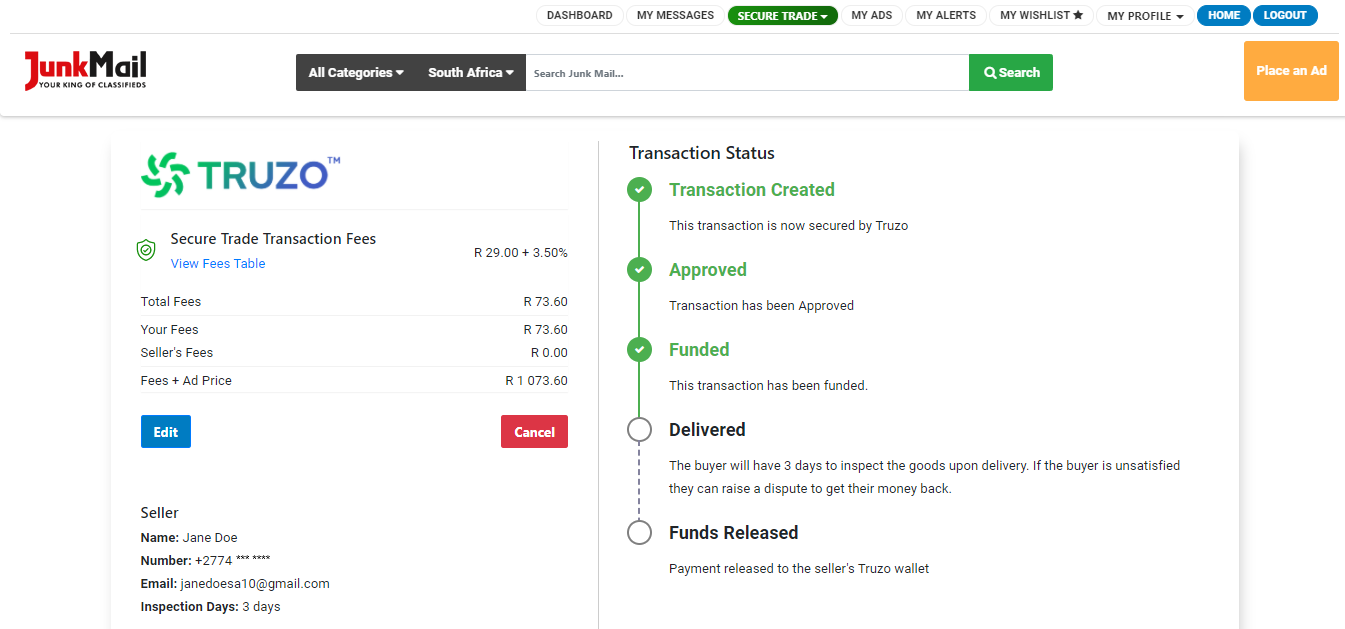
The buyer will have an ‘Approve’ button on their transaction screen.
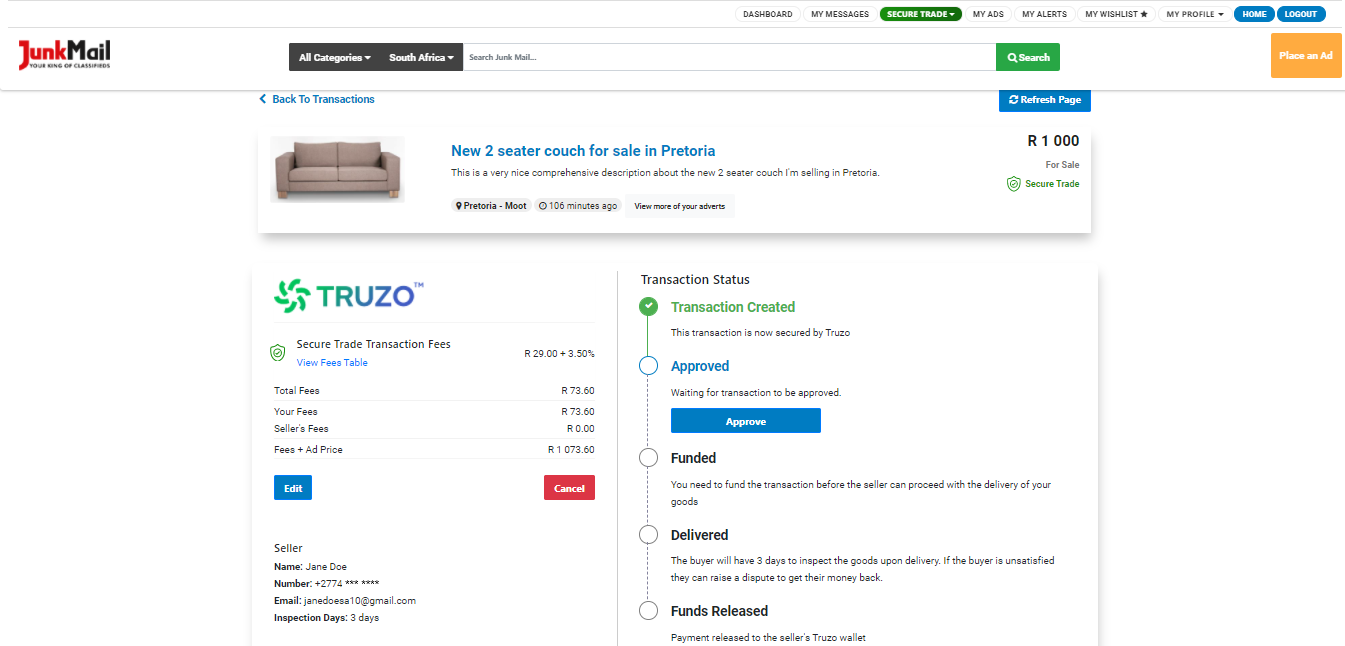 (Buyer view of the transactions page)
(Seller’s view of the transaction screen with the approved transaction status.)
After approving the transaction, the ‘Fund’ button will become available for the buyer.
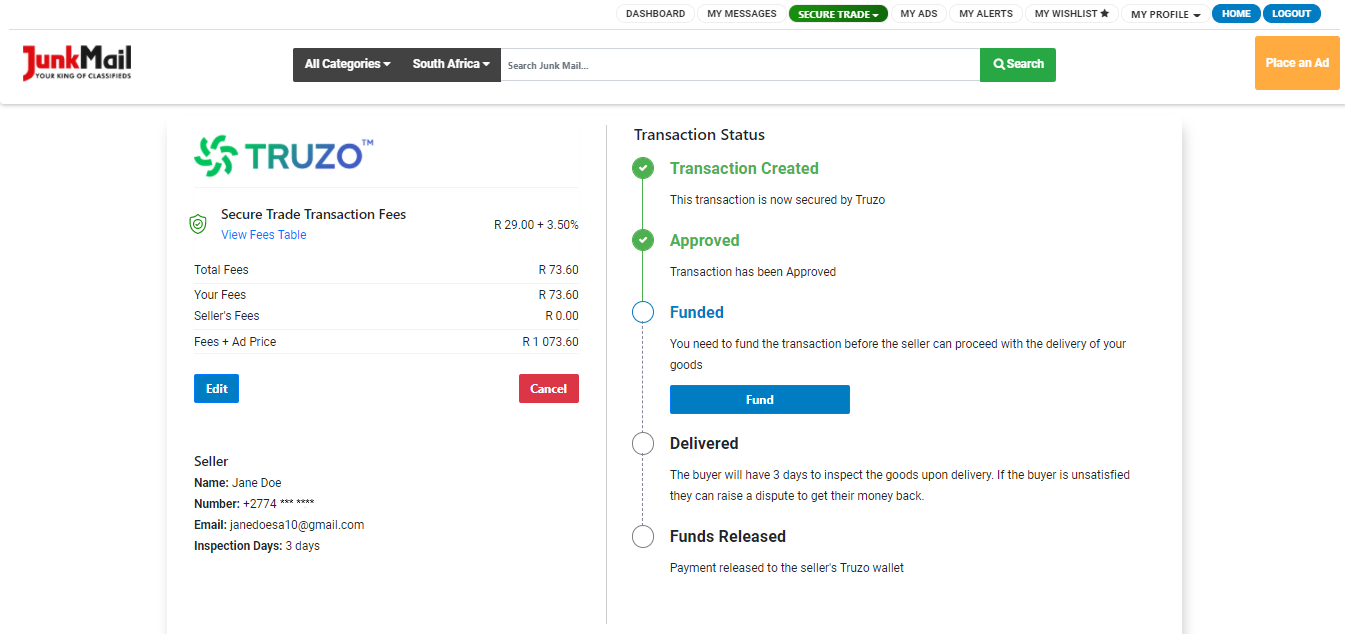 (Buyer view of the transactions page)
The buyer then needs to fund the transaction by using one of the following payment methods:
- Payment by card
- Payment via your Truzo Wallet
- Manual EFT
- Instant EFT
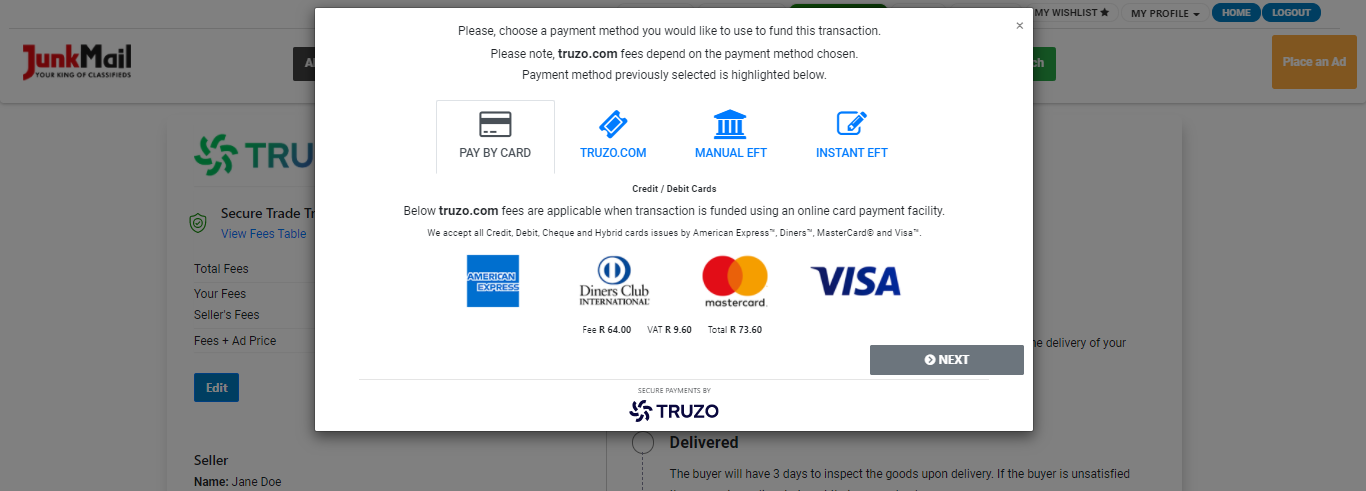 (Buyer transaction screen where payment method has to be selected.)
Please note that each payment method has different transaction fees.
Also note that if you are not logged in or if your Truzo session has expired, you’ll be prompted to log in again before funding the transaction.
Once you’ve selected your payment method, you’ll get a payment overview screen showing all the details of the transaction.
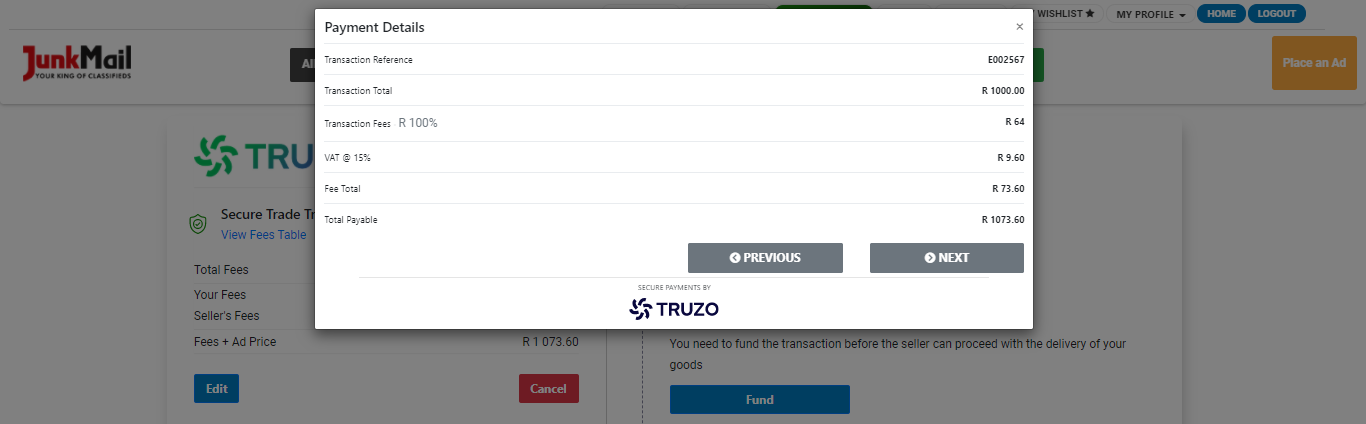
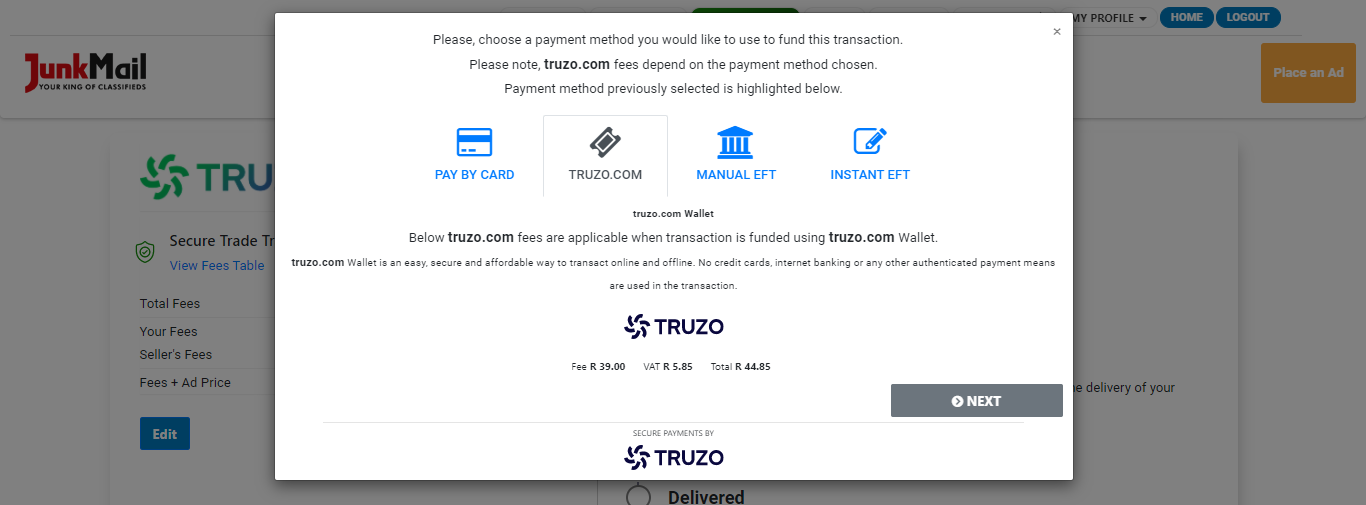
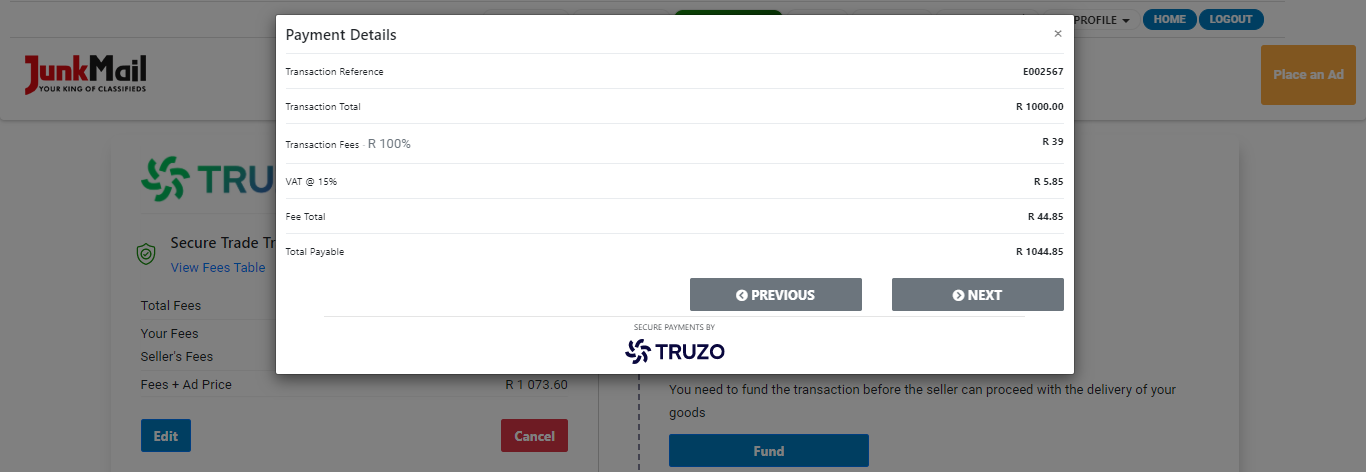
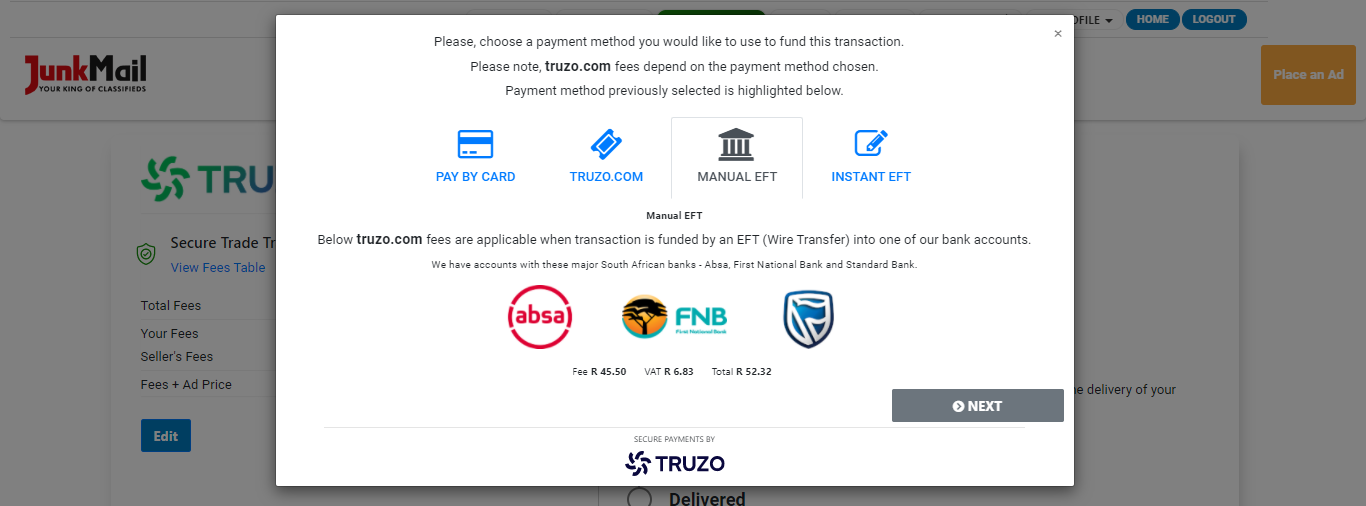
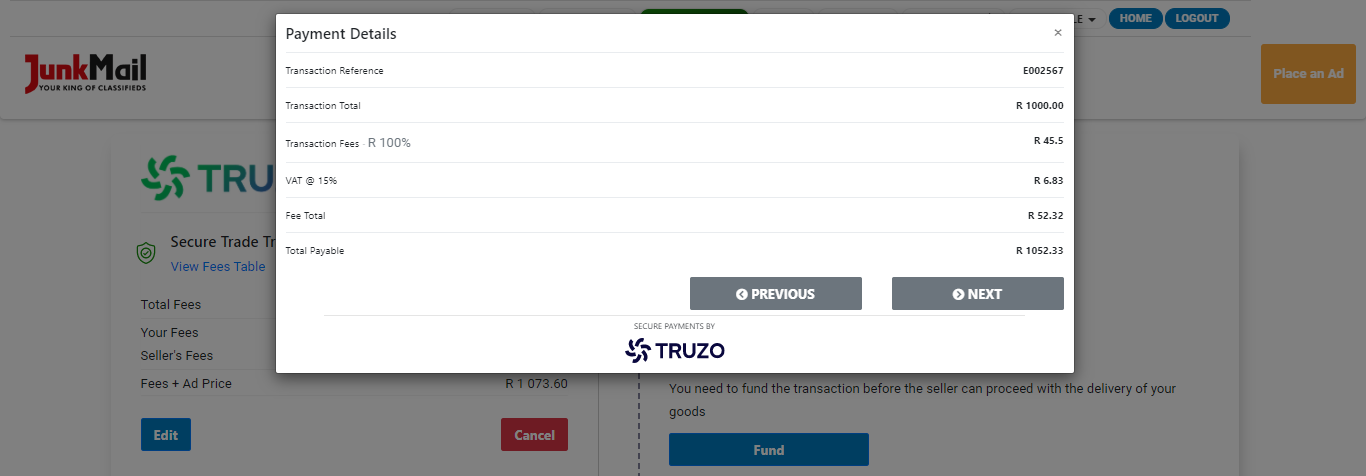
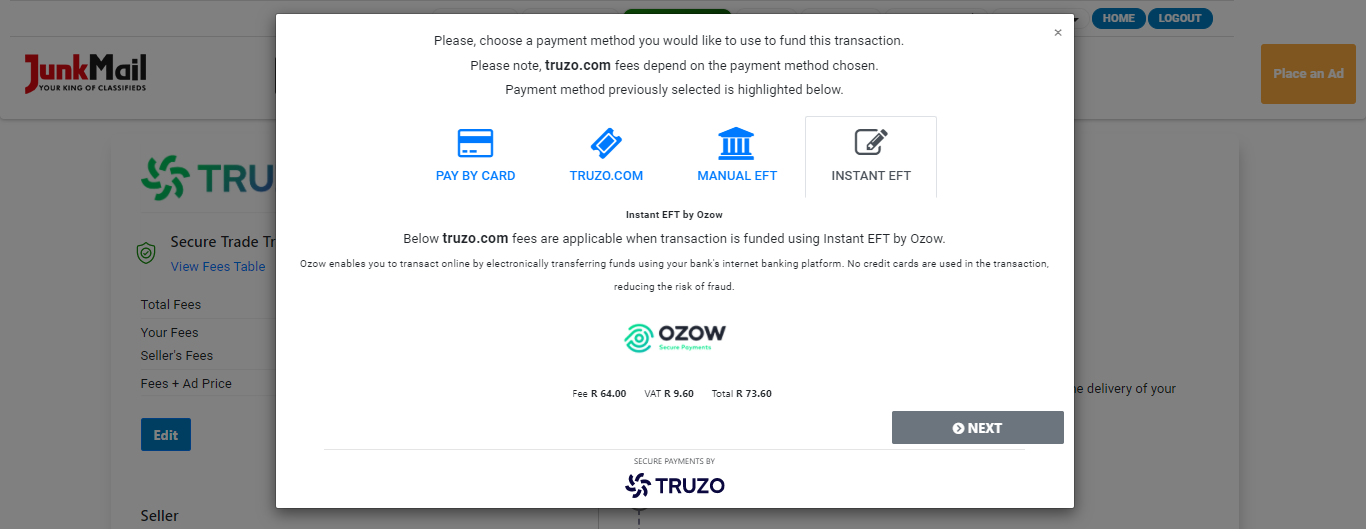
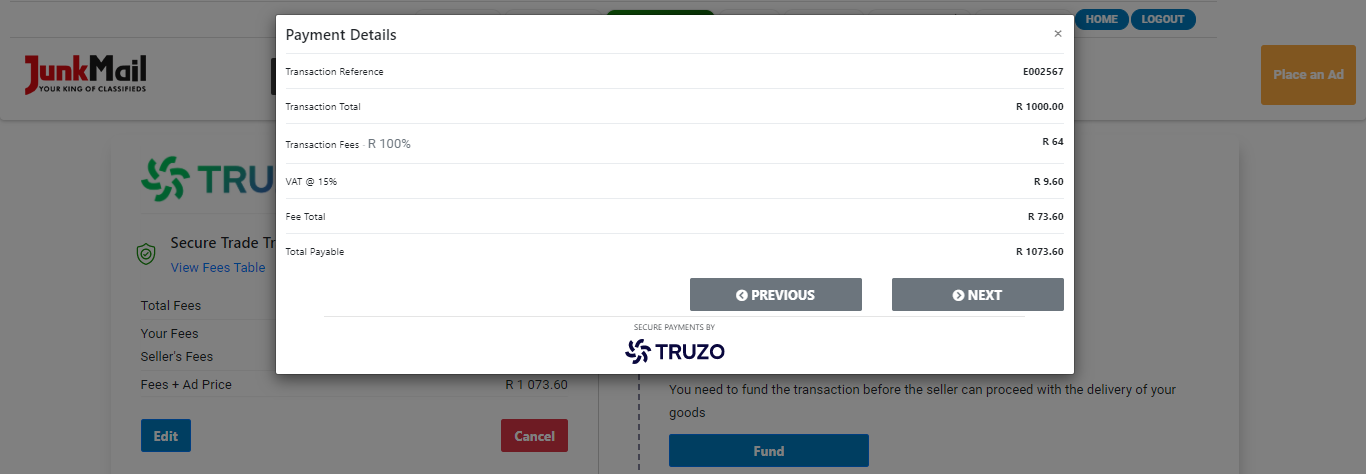
If you are happy with the payment overview, you can click ‘Next’ and follow the steps to complete the payment.
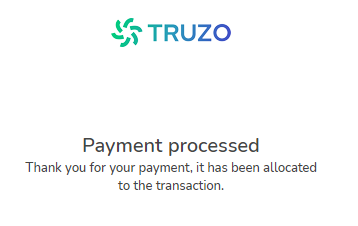
Please note that third-party payment platforms may be used in some cases.
How to confirm delivery after a transaction has been funded
Once the buyer has funded the transaction, the buyer will be able to confirm delivery by clicking the ‘Delivered’ button on the transaction screen.
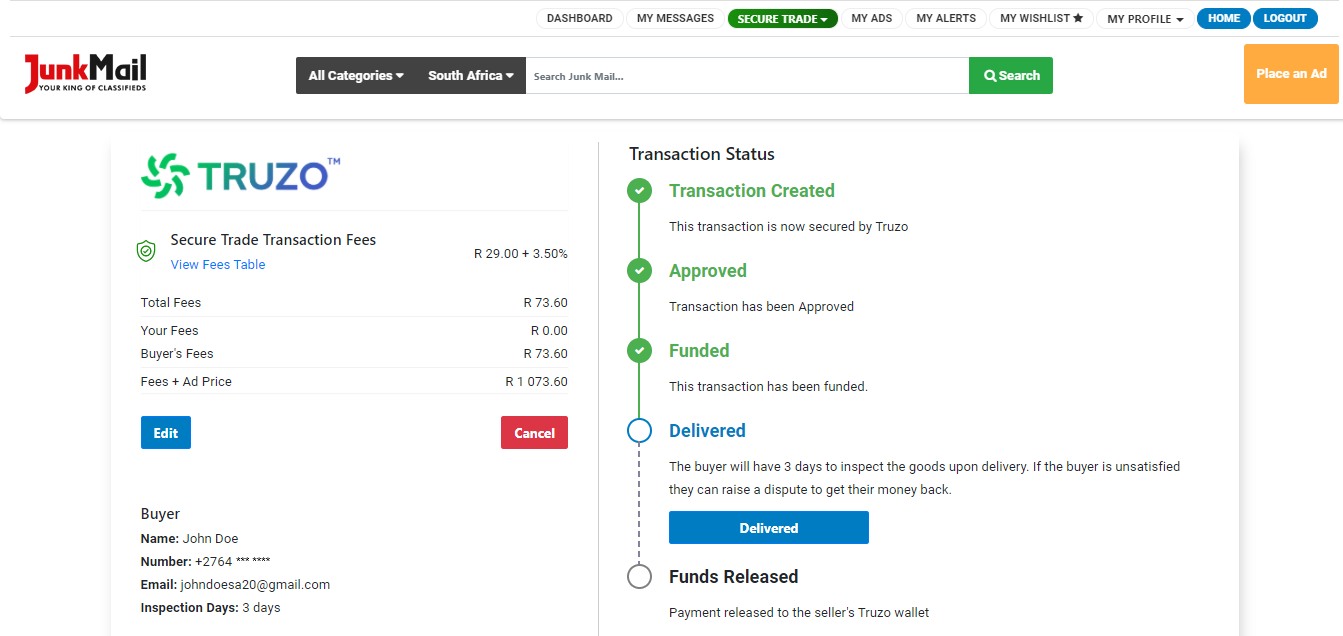 (Seller’s transaction screen where delivery can be confirmed.)
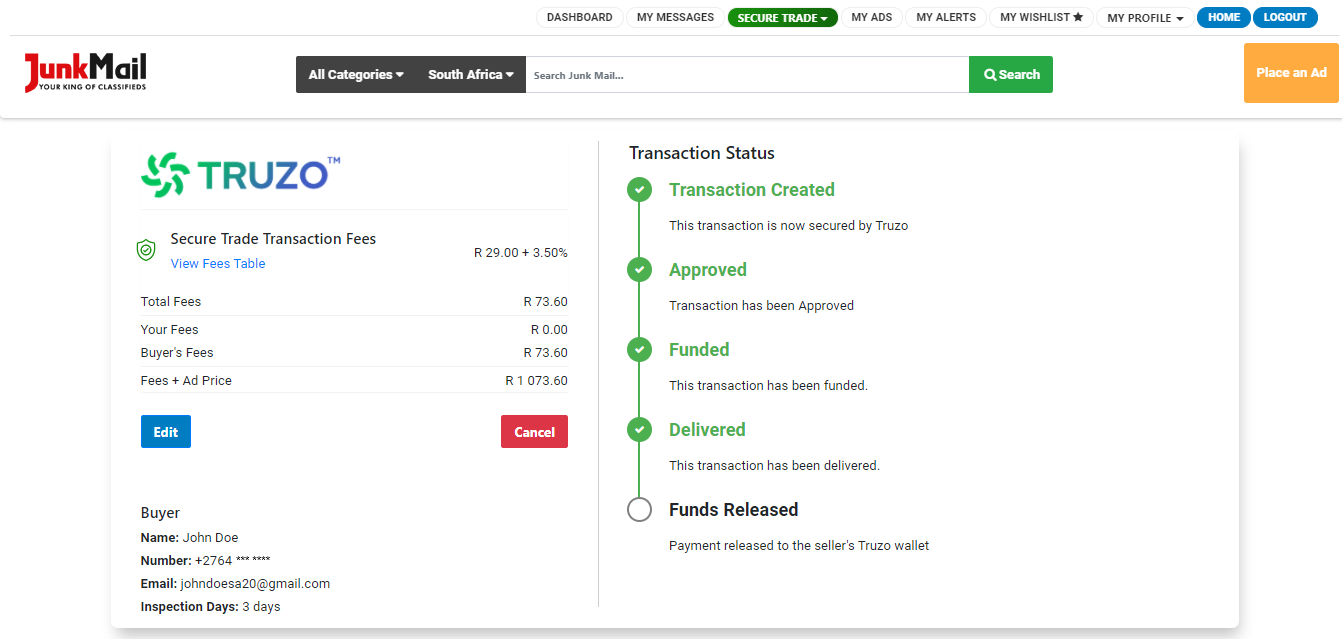 (Seller’s transaction screen where delivery has been confirmed.)
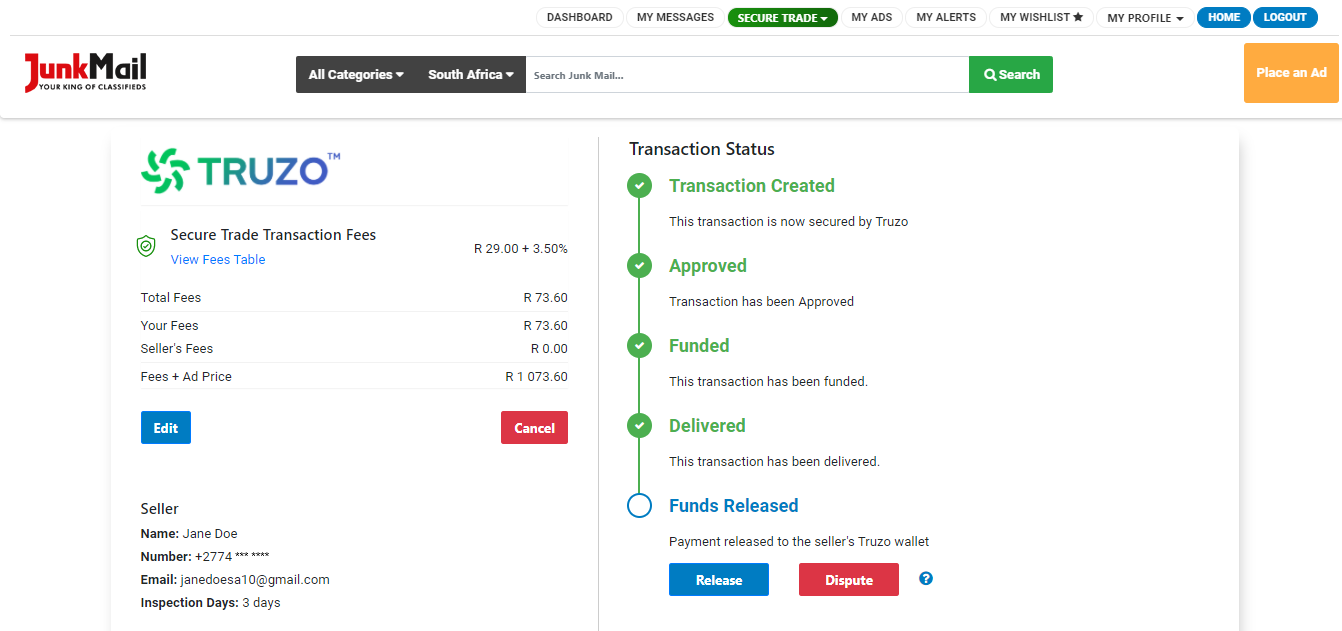 (Buyer’s transaction screen where delivery has been confirmed.)
How to release the funds to the seller
Once delivery of the goods has been confirmed, the buyer has two options:
- Release the funds to the seller
- Dispute the transaction
(Buyer’s transaction screen where they can choose to release the funds or dispute the transaction.)
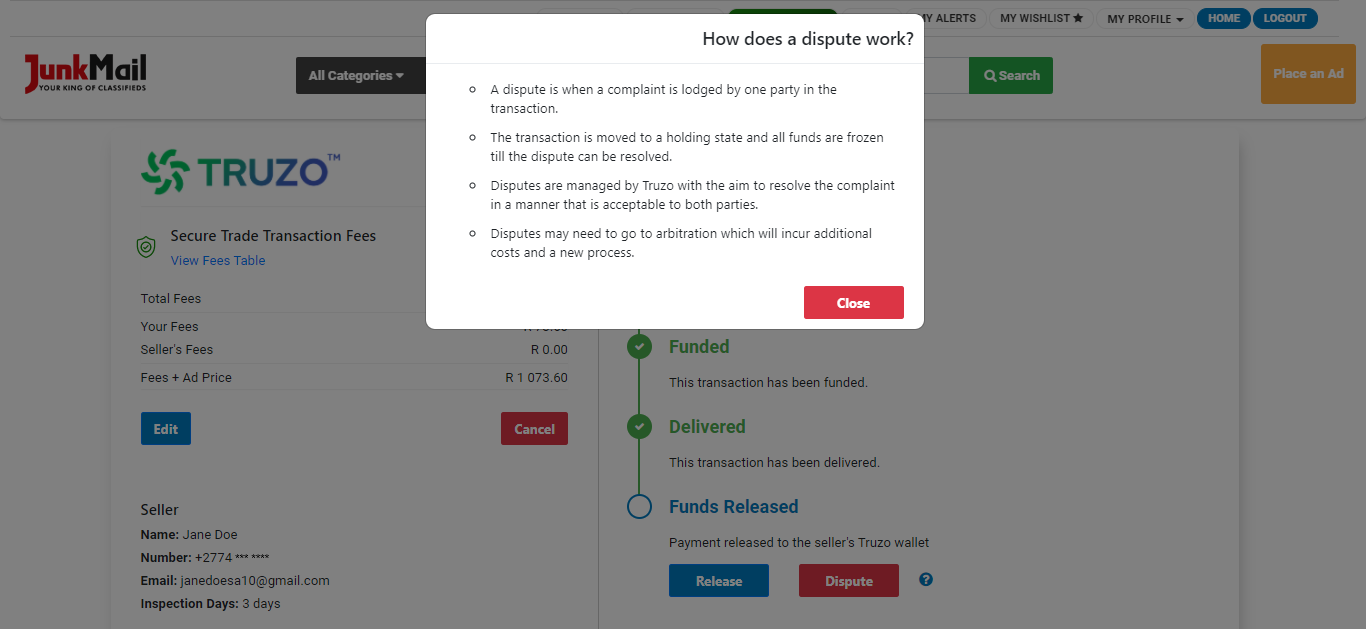
If the buyer is happy with the goods received, they can release the funds to the seller before the inspection days have lapsed.
Please note:
- The inspection days only start counting down once the seller has confirmed that the product has been delivered to the buyer.
- The only time a buyer can dispute a transaction is after delivery has been confirmed and before the inspection days have lapsed.
- Once the inspection days have lapsed, the money will automatically be released to the seller, whether the buyer selected to release the funds to the seller or not.
Once the funds are released, the transaction will be seen as completed.
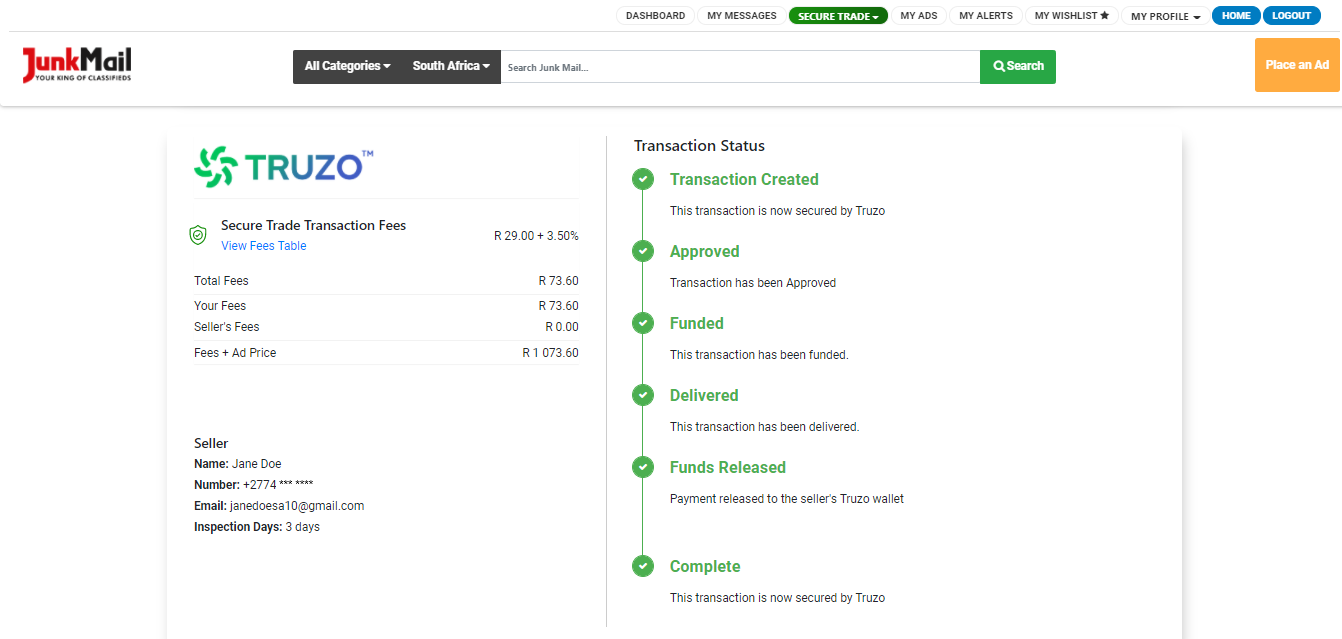 (Buyer’s transaction screen where the funds have been released and the transaction is seen as completed.)
Disputing a transaction
If the buyer is not happy with the products received, they can dispute the transaction.
Transactions can only be disputed between the time delivery was confirmed and before the inspection days have lapsed. Once the inspection days have lapsed, the funds will automatically be released to the seller and the transaction will be marked as complete.
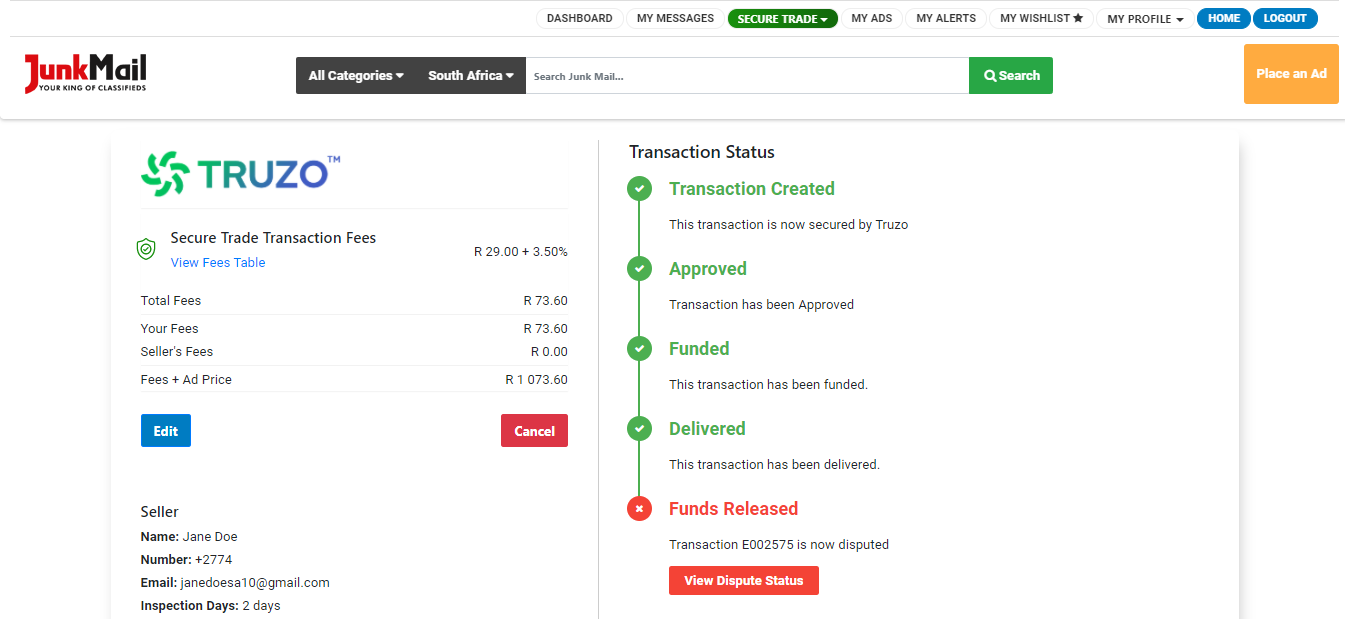 (Buyer’s transaction screen of a disputed transaction.)
For more information on the dispute process, visit > https://www.junkmail.co.za/info/secure-trade-dispute-process
What a cancelled transaction looks like
If a transaction has been cancelled, all the status lines will be marked in red and it will look like this:
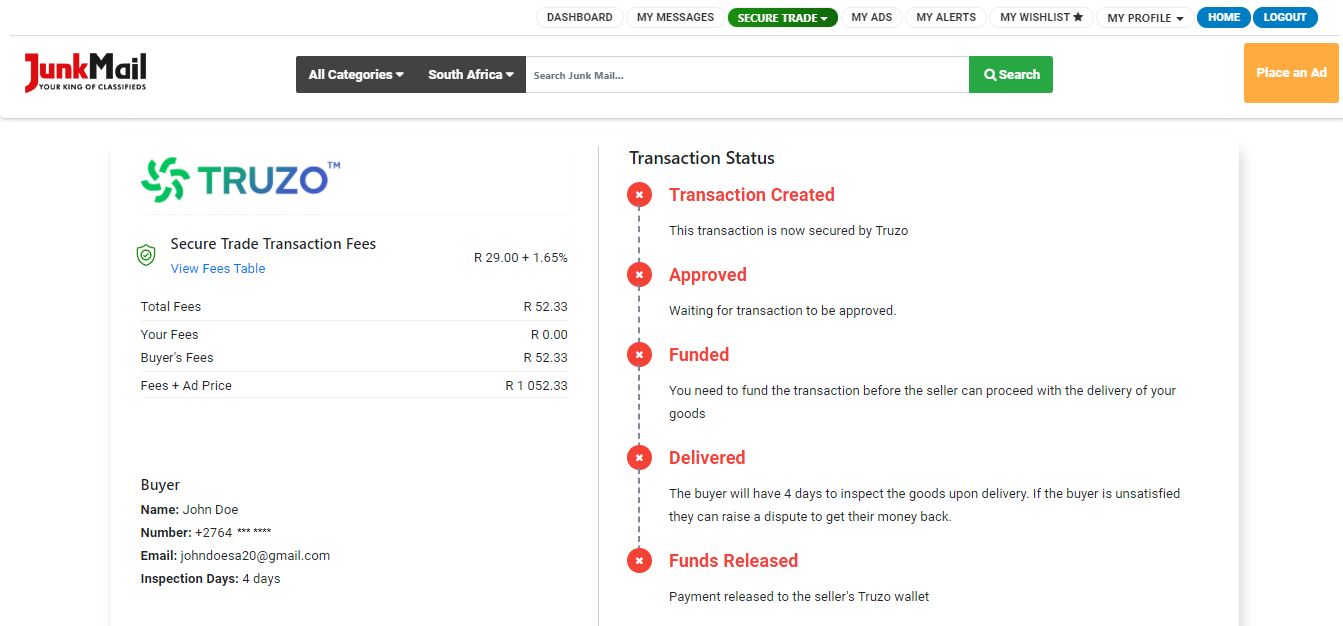
Please also take note of the following:
- Your Secure Trade account email address should be the same as your Junk Mail account email address.
- Transaction fees are applicable on all Secure Trade adverts. Fees differ based on the payment method selected.
- If your profile is newly created or recently updated, and your details still need to undergo verification, you won’t be able to set up or fund Secure Trade transactions on Junk Mail.
- Secure Trade has a separate login from your Junk Mail account, as it works through a third party (Truzo) and is essentially an online wallet. To add an additional layer of security, we require that you log in to your Junk Mail account as well as your Secure Trade account.
- You will be sent notifications via SMS and email (depending on your notification settings) about transactions being set up and their status. We recommend that you set your notification settings to both SMS and email to ensure you stay on top of the transactions’ progress, as well as any movement on your Junk Mail/Truzo account.
- Only transactions created on Junk Mail adverts will show on your Junk Mail dashboard. Transactions set up on the Truzo website will not display on your Junk Mail account.
Now that you know how to set up and track your transactions on Junk Mail, you can start selling quickly and easily.
Disclaimer:
Secure Trade is a third-party Escrow Services platform powered by Truzo. Truzo is regulated by the Financial Sector Conduct Authority (FSCA) and conducts rigorous compliance checks on every Truzo user to ensure a safe and secure environment. Truzo (Pty) Ltd (2016/390144/07) is an Authorised Financial Service Provider (FSP 51539).